
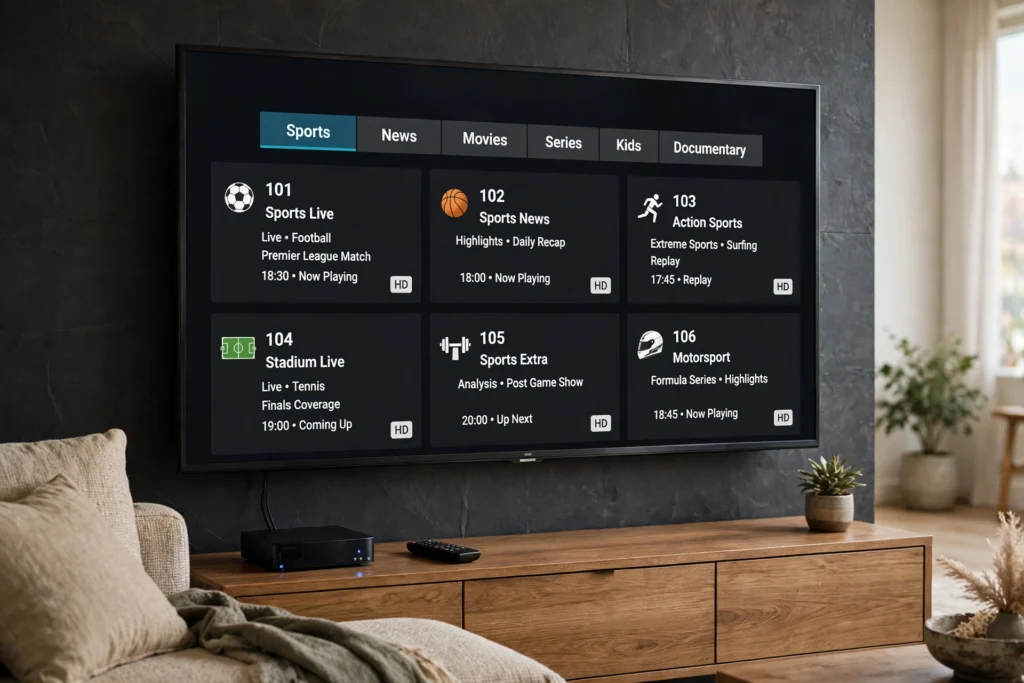
In short: A MAG box and a Formuler box are both dedicated IPTV boxes, which means they are built to open a TV service through a portal or a player app rather than through a general app store full of games and social apps. That single difference shapes everything else: how you set them up, how the guide looks, and who they suit. This guide compares the two tracks side by side, walks each setup in order, and ends with a checklist to run before you buy.
Is IPTV legal in the USA? Read our guide before you subscribe.
MAG vs Formuler at a glance
Think of a MAG box as the portal-first box and a Formuler box as the player-first box. A MAG box usually asks for a portal address and a device identifier, then loads channels and a guide from that portal. A Formuler box usually opens its own player, MyTVOnline, where you add a portal or a playlist and browse channels, the guide, and on-demand titles from one home screen. Neither approach is automatically better — the right one depends on how much you want to tinker and how much you want the box to do for you.
| MAG box | Formuler box | |
|---|---|---|
| Setup route | Portal address + device activation | MyTVOnline player + portal or playlist |
| First screen | Portal home, channels and guide | MyTVOnline home, channels, guide and on-demand |
| Remote feel | Simple, channel-first remote | Fuller remote with shortcuts and recording controls on supported models |
| Best for | Viewers who want a cable-like, portal-led box | Viewers who want one player app that also handles on-demand and recording features |
| Watch out for | Portal details must match exactly, or channels will not load | Model features vary, so check the exact model before you assume a feature is included |
If you already use a Firestick, the comparison in our Firestick vs Android TV Box guide helps explain the stick-versus-box trade-off in plain terms. A stick is easier to move between TVs; a dedicated box usually stays in one living room and feels more like a cable box.
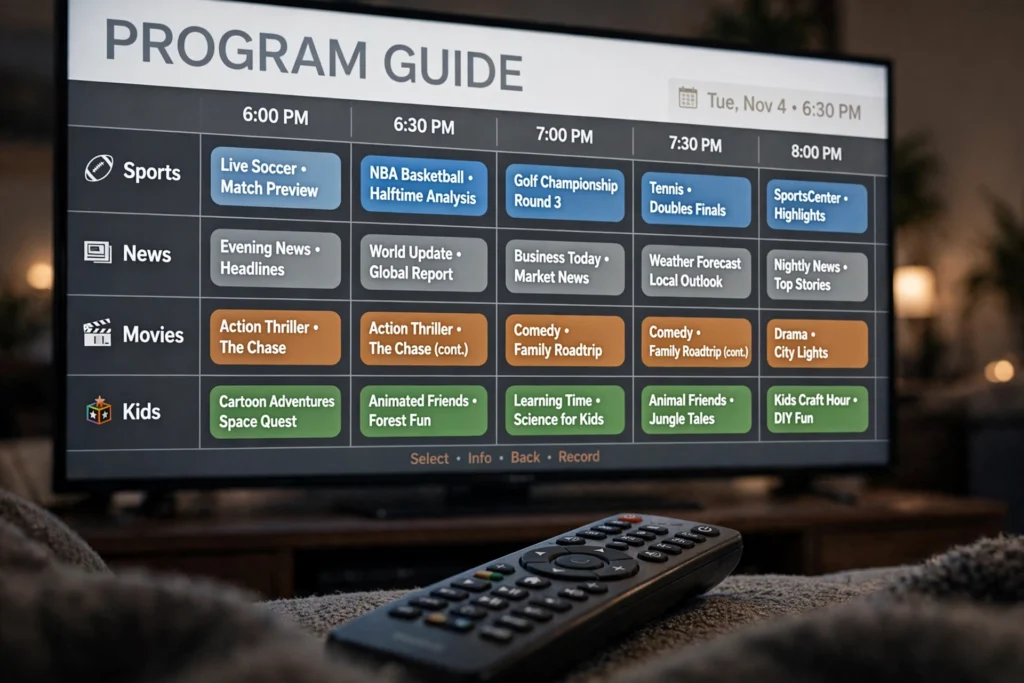
Track A — Setting up a MAG box, in order
A MAG box setup is short, but it is unforgiving about typos. Do the steps in this order and do not skip the restart at the end.
- Connect the box to your TV with HDMI, then connect it to your router with an Ethernet cable if you can — wired is steadier for live TV than Wi-Fi, especially for sports.
- Switch the TV to the right HDMI input and let the box finish its first start-up.
- Open the box settings and find its device identifier (often shown as a MAC address). Write it down exactly, including every colon and digit.
- Enter the portal address your provider gave you, exactly as written. A single wrong character will give you a blank portal instead of channels.
- Give the provider the device identifier if they ask for it, then restart the box and let the portal load fully. The first guide load can take a few minutes — that is normal.
- Open a live channel, then the guide, then a movie or series title. If all three work, the setup is good; if only one works, note which one before you contact support, because that detail points to the fault.
Keep the portal address and the identifier somewhere safe, but do not share them publicly — anyone with both could try to use your line. If you change providers, you will usually need to update the portal address, not buy a new box.
Track B — Setting up a Formuler box, in order
A Formuler setup feels more like setting up a smart TV app, because MyTVOnline is the centre of it. Follow the same discipline: exact details, then a full reload.
- Connect the box with HDMI and, where possible, Ethernet, then finish the first start-up.
- Open MyTVOnline from the home screen. If your model shows more than one player option, start with MyTVOnline, since it is the box’s own player.
- Add your portal or playlist exactly as your provider gave it. Double-check the address before you save it — most “no channels” problems are a typo here.
- Let the channel list and guide load completely before you judge the picture. A half-loaded guide is not a verdict on the service.
- Try a live channel, the guide, and an on-demand title, in that order, and note anything that fails.
- Set your favourites and, if your model supports it, check recording or catch-up options only after live TV is working — do not try to fix everything at once.
Formuler models differ, so a feature on one model may not be on another. Check the exact model, not just the brand name, before you buy for a specific feature such as recording.
Before you buy — the checklist
Run this checklist before you pay for a box or a subscription. It takes ten minutes and saves most of the regret buyers report.
- You know whether you want a portal-led box (MAG) or a player-led box (Formuler), and why.
- You have a wired connection available, or you have accepted that Wi-Fi may struggle at game time.
- You know the exact model and what it actually includes — no assumed recording, storage, or app features.
- You have a plan to test live sports, news, and movies on the real box during a free trial, not just on a phone.
- You know the subscription cost for your household size before you buy the hardware.
On USA IPTV Live, a free trial is available via WhatsApp, with 24/7 support and no long-term contract, so you can test on your own box before committing. The service offers 27,000+ channels and 80,000+ movies and series in 4K/HD. Plans are $13 for 1 month, $32 for 6 months, and $62 for 12 months on 1 connection; $16, $40, and $75 on 2 connections; and $20, $50, and $95 on 3 connections. If you need more than one TV, check the connection count before you order — that number, not the box, decides how many TVs can watch at once.
The verdict
Choose a MAG box if you want the simplest, most cable-like route and you are comfortable entering a portal address once and leaving it alone. Choose a Formuler box if you want a fuller player home screen, with guide, on-demand, and model-dependent extras in one place. If you are still unsure, do not buy either yet — run the free trial on the device you already own, such as a Roku or a Samsung or LG smart TV, and only buy a dedicated box once you know you want that living-room experience every night.