
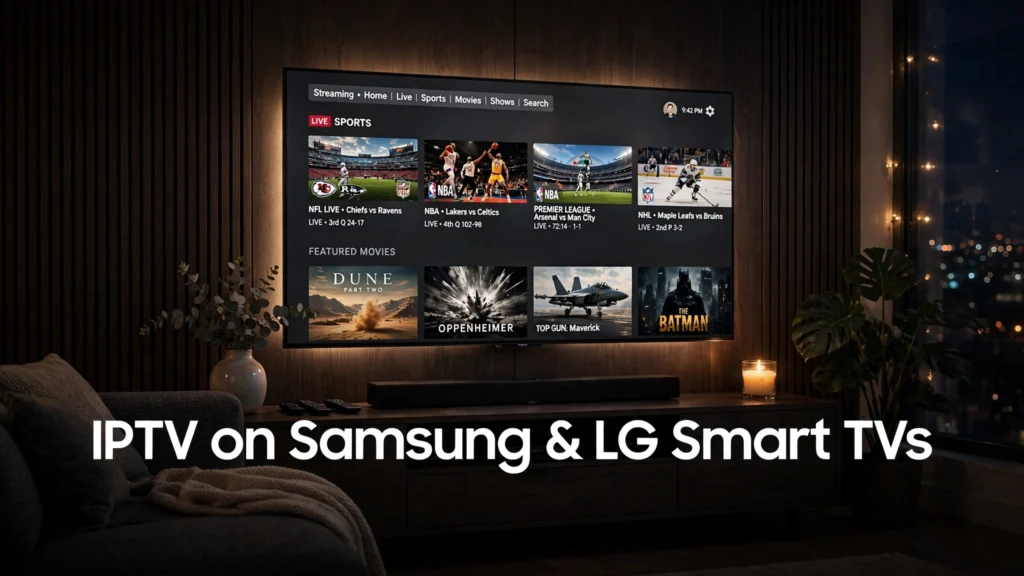
In short: IPTV Samsung Smart TV USA setup works best through an app-store IPTV player, casting from a phone, or a Firestick or Android TV box plugged into the TV. Samsung runs Tizen and LG runs webOS, so Android-only players such as TiviMate are not native options, but the same USA IPTV LIVE subscription, with 27,000+ channels and 80,000+ movies and series, still reaches either TV with the right setup.
Samsung vs LG: why the setup is different from a Firestick
A Firestick runs Android-based software, so almost any IPTV player installs the same way. A Samsung TV runs Tizen and an LG TV runs webOS, and neither lets you sideload apps the way a Firestick does. That is the whole reason Samsung and LG setups confuse people: the subscription is the same, but the route onto the screen is not.
Once you pick one of the three routes below, the rest — channels, guide, and pricing — works the same as on any other device. That is the key point for IPTV Samsung Smart TV USA owners: the subscription does not change, only the route onto the screen does.
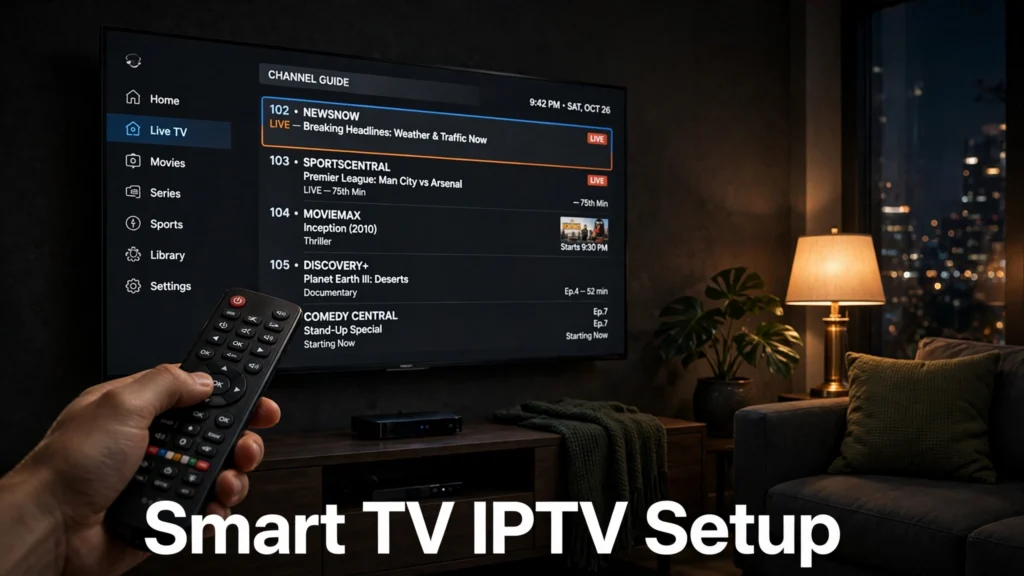
Option 1: Use an IPTV player from your TV’s app store
For an IPTV Samsung Smart TV USA setup, the app-store route is the cleanest option when a compatible player is available, because nothing extra plugs into the TV. Open the app store on the TV, search for an IPTV player, and check that it is available for your exact model and year before you pay for anything — app availability varies by model, year, and region, and a player that exists on one Samsung does not automatically exist on another.
Once installed, you sign in with the subscription details your provider sends you, let the channel list and the free EPG guide load, and pick something to watch. If no suitable player shows up for your model, do not force it: move to Option 3 instead of hunting for unofficial downloads, which is where most Samsung and LG headaches start. You can check your exact model and year in the TV’s settings menu before you start.
Option 2: Cast or mirror from your phone
Casting is the quickest test, and a useful fallback when the TV’s app store does not cooperate. Start the stream on your phone, cast or mirror it to the Samsung or LG TV, and watch on the big screen while the phone acts as the remote.
The picture quality depends on your home Wi-Fi more than on the TV itself, so keep the phone on the same network and close to the router for the test. Keep the phone charged during a long game, or plug it in while you cast. Casting is best as a try-it-tonight route or a backup; for everyday watching, a player app or a plug-in box (Options 1 and 3) is more comfortable, because a phone call or a dying battery should not be able to interrupt the game.
Option 3: Plug in a Firestick or Android TV box (the most reliable route)
If you want the full player choice — including the players covered in our TiviMate vs IPTV Smarters Pro guide — plug a Firestick or Android TV box into an HDMI port on the Samsung or LG TV and use the TV as a screen. Setup then follows our best IPTV for Firestick guide: subscribe, install the player your provider recommends, sign in, and let the guide load.
This route costs the price of the stick or box, but it removes the model-by-model app-store lottery entirely, and it travels with you if you ever replace the TV. For most IPTV Samsung Smart TV USA households that want the least fuss, this is the route to recommend first.
What you get once it is set up
Whichever route you chose, an IPTV Samsung Smart TV USA subscription delivers the same USA IPTV LIVE package: 27,000+ live channels and 80,000+ movies and series in HD and 4K, with a free EPG guide, an Anti-Freeze System built for peak hours, and 24/7 support. That includes the US networks and sports channels covered in our sports-without-cable guide and the local channels in our local channels guide.
Browse the full channel list for your market before subscribing, and compare pricing plans — from $13/month for one connection, with 2 connections from $16 and 3 from $20, and no activation fee. One connection covers one stream at a time, so a household that watches two TVs at once needs a multi-connection plan.
Speed, buffering, and the game-night test
For IPTV Samsung Smart TV USA streaming, 25 Mbps is comfortable for HD and 50 Mbps or higher for 4K, following the guidance in our speed post. If a stream buffers, the cause is usually the home network, not the TV brand: restart the router, move closer to it or use a wired adapter where the TV allows it, and close background apps on the player device.
Test any new setup during a big game before cancelling anything else — that is the only test that counts, and you can try USA IPTV LIVE first with a free trial on WhatsApp. Questions first? Message us on WhatsApp or through our contact page and ask — a straight answer beats a guessed one.
Ready to set it up?
Ready to watch on your Samsung or LG TV tonight? Start with a free trial on WhatsApp, or subscribe through our buy IPTV USA page and follow the route above that fits your TV. Setup takes minutes, and support is there around the clock if anything does not load first time.
Frequently asked questions
Can I watch IPTV directly on a Samsung Smart TV?
Yes, if a compatible IPTV player is available in your Samsung TV’s app store for your model and year. If none is available, plug in a Firestick or Android TV box and use the TV as a screen instead.
Can I watch IPTV directly on an LG Smart TV?
Yes, on the same condition: a compatible player in the LG webOS app store for your model. Availability varies by model and region, so check the store on your own TV before subscribing.
Does TiviMate work on Samsung or LG TVs?
TiviMate is an Android player, so it is not a native Samsung Tizen or LG webOS app. To use it with a Samsung or LG TV, run it on a Firestick or Android TV box connected to the TV.
Do I need a separate subscription for my Samsung or LG TV?
No. One USA IPTV LIVE subscription works across devices, but one connection covers one stream at a time. Households watching two TVs at once need a 2- or 3-connection plan.
What internet speed do I need for IPTV on a smart TV?
25 Mbps is comfortable for HD and 50 Mbps or higher for 4K. If streams buffer at game time, check your Wi-Fi or wired connection first — most buffering is a network issue, not a TV issue.