

In short: IPTV internet speed 4K means about 25 Mbps of real, sustained speed for each 4K stream — not the headline number on your internet bill. HD needs around 10 Mbps and Full HD around 15–20 Mbps. Most buffering during live games is not a lack of headline speed; it is Wi-Fi dropouts, a busy household, or peak-time congestion. Test your real speed, then fix the connection before you blame the service.
Nothing ruins a live game like the picture freezing on the winning drive. And the first thing most people do is run a speed test, see a big number, and conclude the IPTV service must be at fault. Sometimes it is. But far more often, the number on the speed test and the speed that actually reaches your TV during a game are two different things.
This guide gives you the honest numbers: what HD, Full HD and 4K streams actually need, how to add up your household’s real demand, and the fixes that stop buffering — in the order you should try them.
How Much IPTV Internet Speed 4K Do You Actually Need?
A single HD stream needs about 10 Mbps, Full HD needs 15–20 Mbps, and a 4K stream needs about 25 Mbps of sustained, real-world speed. This IPTV internet speed 4K figure is per stream, so count each 4K TV separately.
Those are per-stream numbers, and they are the numbers that matter. A 4K stream does not care what your plan is advertised as; it cares what arrives at your TV, second after second, for two or three hours straight. That is why a connection that tests at 100 Mbps can still buffer a 4K game: the test measures a short burst, while a live stream needs a steady flow.
| Quality | Speed per stream | Good for |
|---|---|---|
| HD (720p) | ~10 Mbps | Smaller TVs, tablets, phones |
| Full HD (1080p) | 15–20 Mbps | Most living-room TVs |
| 4K (2160p) | 25+ Mbps | Large 4K TVs, live sports |
If you are not sure what your connection truly delivers, run it through the IPTV speed calculator — it is built for exactly this question and it is free to use.
Add up your whole household, not just the TV
Add 25 Mbps for every 4K stream running at the same time, then add headroom for everything else in the house — because the game never has the connection to itself.
This is the step most people skip. The game is on the living-room TV in 4K (25 Mbps). Someone else is on a video call (a few Mbps). A phone is backing up photos. A game console is downloading an update in the background. Suddenly the 100 Mbps plan is not 100 Mbps for the TV at all.
A realistic household total looks like this: one 4K stream (25) + one HD stream in another room (10) + video calls and browsing (10–15) = 45–50 Mbps of real demand, and you want headroom above that. Two 4K streams at once? Budget 50 Mbps for the streams alone, before anything else touches the connection.
The fix here is often free: pause the big background downloads during the game, and check whether your router is quietly updating or syncing at kickoff.
Why your speed test lies to you
Speed tests measure a short burst to a nearby server, while a live game needs hours of steady delivery — so test at game time, on the device that actually streams, not just on your phone next to the router.
Three things make speed tests flatter your connection. First, they run for seconds, not hours, so they miss the dips. Second, they usually test to a server your ISP picks, which is often closer and faster than the route your stream takes. Third, people run them on a phone standing next to the router, while the TV sits two rooms away behind a wall.
Test properly instead: run the test on the streaming device itself, or on a laptop in the same spot as the TV, at the same time of day you normally watch. If the number there is far lower than at the router, you have found your problem — and it is a Wi-Fi problem, not a speed-plan problem.
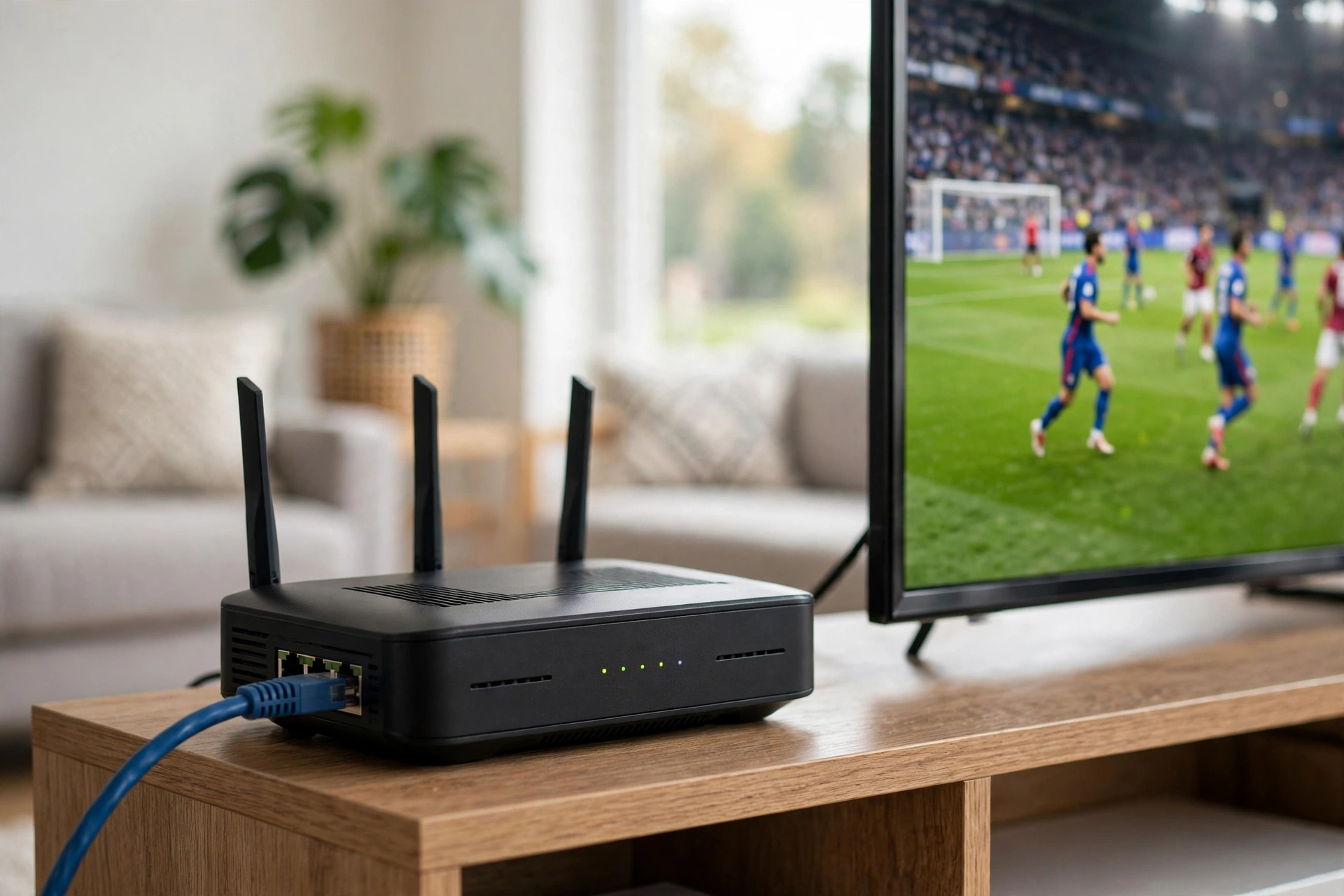
Wired beats Wi-Fi for live sports, every time
If you can run an Ethernet cable to your streaming device, do it — a wired connection removes the single biggest cause of live-sports buffering.
Wi-Fi is convenient and it is also variable. Walls, distance, neighbours’ networks, a microwave running in the kitchen — all of it shows up as tiny dropouts that a web page never notices and a live stream cannot hide. Ethernet does not have those problems. A Firestick or Android TV box on a cheap Ethernet adapter, or a Smart TV with its Ethernet port used, will hold a 4K stream far more steadily than the same device on a weak Wi-Fi signal.
If a cable genuinely cannot reach the TV, the next best options in order are: a mesh Wi-Fi unit in the same room as the TV, then a powerline adapter, then moving the router closer. What does not help is a Wi-Fi extender that halves your speed while claiming to boost your signal — check what it actually delivers at the TV before trusting it.
For setup help on the devices themselves, see our Firestick guide and our guide to watching sports without cable.
Buffering fixes, in the order to try them
Restart the streaming device and router first, then wire the connection, then lower the stream to Full HD for one game to isolate the cause — in that order, before changing anything you pay for.
- Restart the Firestick, box or TV app, then the router. This clears more game-night problems than anything else, and it costs two minutes.
- Wire the connection if you can, or move closer to the router for one game as a test.
- Drop the stream to Full HD for one game. If Full HD is rock solid and 4K buffers, your connection is the limit, not the service. If both buffer identically, look at the device or the app.
- Close background downloads and cloud backups during the game.
- Try a different device on the same connection. If the phone streams fine and the old box does not, the box is the bottleneck.
Only after those five steps should you think about a faster plan — and when you do, for IPTV internet speed 4K, buy sustained speed, not a bigger advertised number. If you are comparing the cost of upgrading your internet against the cost of what you watch, our IPTV vs cable cost breakdown puts the whole monthly picture in one place.
What USA IPTV LIVE needs from your connection
USA IPTV LIVE streams in HD and 4K with an Anti-Freeze system, and it needs the same speeds as above — about 25 Mbps sustained per 4K stream — plus a stable connection, which matters more than a fast one. That stability is what IPTV internet speed 4K really comes down to.
The service itself carries 27,000+ live channels and 80,000+ movies and series on demand, with a free EPG and 24/7 support. Plans start from $13/month for one connection ($13/$32/$62 for 1/6/12 months; two connections $16/$40/$75; three connections $20/$50/$95), with no activation fee. See the full subscription plans and the channel list. If you want to test it on your own connection first, confirm the free trial with the team on WhatsApp.
FAQ
How much internet speed do I need for IPTV in 4K?
About 25 Mbps of sustained, real-world speed per 4K stream — that is the IPTV internet speed 4K baseline. That is the speed that must actually reach your TV for the whole game, not the advertised speed of your plan. For HD, budget about 10 Mbps per stream, and for Full HD, 15–20 Mbps.
Is 25 Mbps enough for 4K sports?
Yes, for one 4K stream, provided the 25 Mbps is stable and actually reaches the TV. If other people are streaming, calling or downloading at the same time, add their usage on top. A wired connection makes 25 Mbps far more reliable than the same number over weak Wi-Fi.
Why does my IPTV buffer when my speed test looks fine?
Because speed tests measure a short burst to a nearby server, usually from a phone next to the router. A live game needs hours of steady delivery to the TV itself. Test on the streaming device, in its usual spot, at game time — that number is the honest one.
Is wired better than Wi-Fi for IPTV?
Yes. Ethernet removes the dropouts that walls, distance and neighbouring networks cause on Wi-Fi, and those dropouts are the most common cause of live-sports buffering. If a cable cannot reach the TV, a mesh unit in the same room is the next best option.
How do I test whether my connection is fast enough?
Use the free IPTV speed calculator and test from the device and spot you actually watch from, at the time you normally watch. Then compare the result with the per-stream numbers above: 10 Mbps for HD, 15–20 Mbps for Full HD, 25+ Mbps for 4K.
Stop guessing about your connection. Test it properly, wire it if you can, and then watch the game the way it is meant to look. And if you want to see how IPTV performs on your setup before paying anything, confirm a free trial with the team on WhatsApp.