
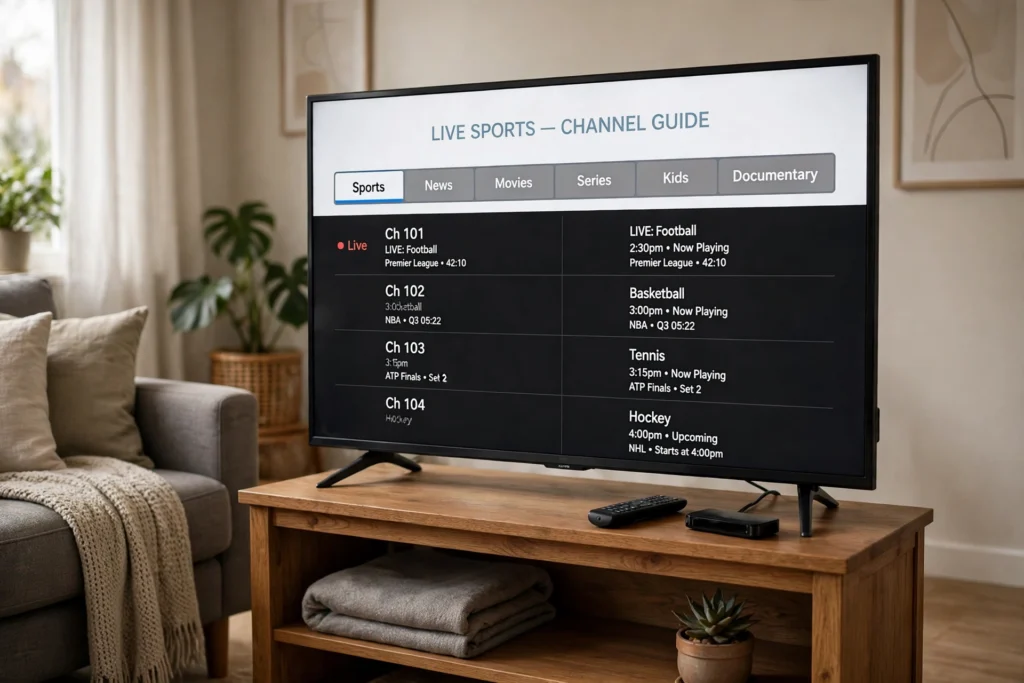
In short: IPTV buffering on a Firestick is usually your home network, a full cache, or a busy device — not a reason to upgrade your broadband first. Before you change anything, run the 60-second test below. Four quick questions will point to the cause. The fix ladder after it is tied to your answers. So you change one thing at a time and know what worked.
The 60-second test
Answer these four questions while the problem is happening, not from memory later. Each answer points to a different rung of the ladder.
| Question | If you answer yes | Your answer points to |
|---|---|---|
| Does it buffer on every channel, or only one? | Every channel | Your connection or the Firestick itself — Ladder steps 1–3 |
| Does it buffer only during live sports or at night? | Yes, only at busy times | Peak-time load — Ladder steps 1 and 4 |
| Does another app, like a video app, also buffer? | Yes | Your home network, not the IPTV app — Ladder step 1 |
| Is the Firestick slow to open menus, not just to play video? | Yes | Device load or a full cache — Ladder steps 2–3 |
If you answered no to all four — one channel, quiet time, other apps fine, menus fast. The fault is most likely that single channel or stream. Switch to another channel, wait a minute, and try the first one again before you change any setting. If you are comparing devices, our Firestick vs Android TV Box guide explains where a stick struggles and where a box does better, so you can tell a device limit from a fixable fault.
The fix ladder — work it in order
Work the ladder top to bottom and stop as soon as the picture stays smooth for two full minutes. Changing three things at once is how a small fault turns into a long evening, because you never learn which change fixed it.
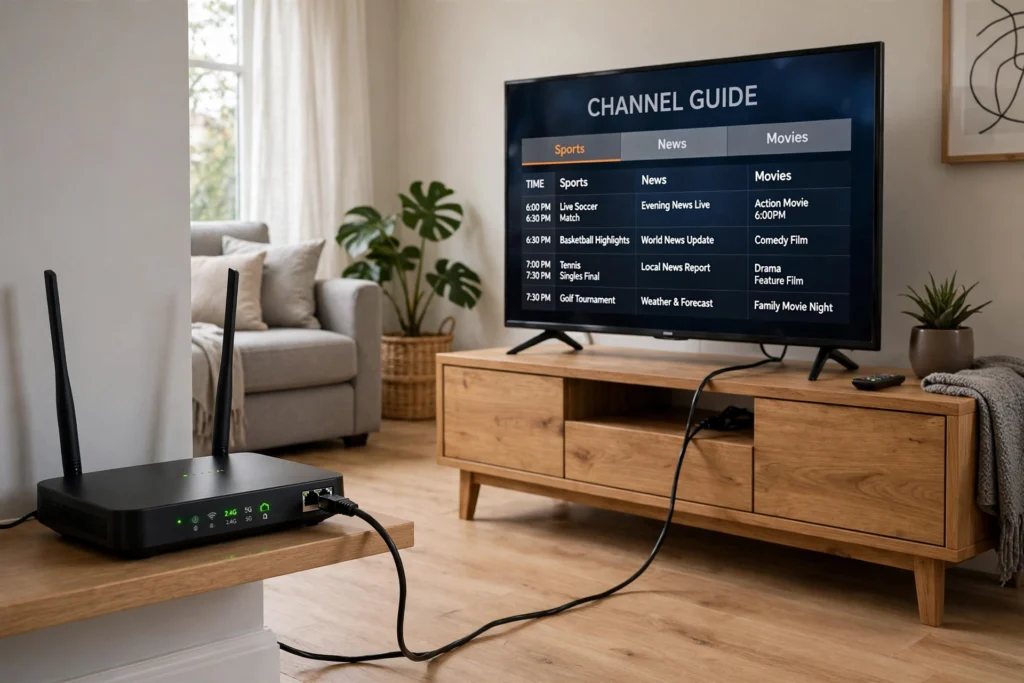
- Fix the connection first. Move the Firestick closer to the router if it is behind the TV or in a cabinet. Or use an Ethernet adapter for the Firestick if you can run a cable. A wired connection is steadier for live TV than Wi-Fi, especially for sports. Restart the router, wait for it to come back fully, then restart the Firestick. Test a live channel for two minutes before you touch anything else.
- Clear the player cache. On the Firestick, go to Settings, then Applications, then Manage Installed Applications, open your IPTV player, and choose Clear Cache. Do not choose Clear Data yet — that wipes your login and settings. Reopen the player, let the channel list load, and test again.
- Free the Firestick itself. Close apps running in the background, uninstall apps you do not use, and check how much storage is free. A Firestick with almost no free space stutters on live video first. Restart the Firestick after clearing space, then test again. If the menus were slow in your test, this is the step that usually fixes it.
- Lower the load at busy times. If buffering only happens during live sports or in the evening, pause downloads and updates on other devices, and do not stream on three screens at once while you test. If the picture smooths out, the cause was peak-time load on your home network, not the service. A wired connection from step 1 helps here more than any setting inside the player.
- Reinstall the player — last, not first. Only if steps 1–4 changed nothing, uninstall the IPTV player, restart the Firestick, and install the player again from the store. Check the player in your own Firestick’s store — availability varies, so do not assume a player you saw on another device is on yours. Add your service details exactly as given, let the guide load fully, and test a live channel.
If the picture is still freezing after the whole ladder, note your test answers before you contact support: every channel or one, busy times or always, other apps affected or not, and whether the menus were slow. Those four answers tell support where to look first.
How much speed do you actually need?
As a guide only, not a guarantee, allow about 25 Mbps per 4K stream. With 50+ Mbps of headroom for a household watching more than one stream at once. That is the whole speed paragraph: if your connection already clears that comfortably and the picture still buffers. Speed was never the problem — work the ladder above instead. Upgrading a plan that already clears the guide will not fix a full cache or a Firestick hidden behind a TV cabinet.
Match-day checklist
Run this before kick-off, not during it, so a fix does not cost you the first ten minutes of the game.
- Restart the Firestick and the router at least 30 minutes before the game.
- Open a live sports channel and let it play for two full minutes without freezing.
- Check that the guide shows the right programme for the current time.
- Clear the player cache if the picture stuttered at all during the test.
- Keep the remote and a wired connection ready — if Wi-Fi struggles at game time, the cable is your backup.
On USA IPTV Live, a free trial is available via WhatsApp, with 24/7 support and no long-term contract, so you can run this exact test at game time before you pay. The service offers 27,000+ channels and 80,000+ movies and series in 4K/HD. Plans are $13 for 1 month, $32 for 6 months, and $62 for 12 months on 1 connection; $16, $40, and $75 on 2 connections; and $20, $50, and $95 on 3 connections. If you watch the big games. The Best IPTV for Sports USA guide explains what to check in a service before match day. The Watch Live TV Without Cable guide covers the wider switch from cable — both are worth reading before you settle on a setup.